Out of Orders Rooms
The Out of Order Rooms report allows users to view a list of all rooms that are marked OOO for the day. As a property manager, user can use this information to determine the period of time the room was out of order as well as the notes/reasons associated with the out of order status.
Perform the following steps to generate the report:
Navigate to Reports ➜ All Reports ➜ Housekeeping ➜ Out of Order Rooms.
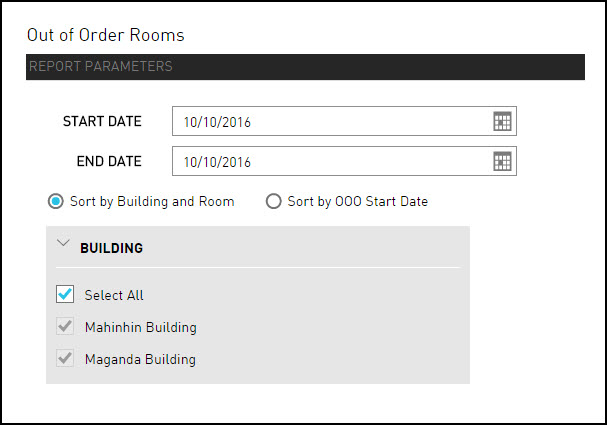
Select the Start Date and End Date fields from the calendar to generate dates for the report.
Choose which sorting options to include in the report:
|
Field |
Description |
|---|---|
|
Sort by Building and Room |
Sorts the report alphabetically by building ID and room number. |
|
Sort by OOO Start Date |
Sorts the report ascending by room number. |
Choose the Building field to include in the report.
Click Generate. The report with the selected data appears.
Click Print to send a copy of the report to the printer.
Sample Report

Report Parameters
This report displays the following parameters:
|
Field |
Description |
|---|---|
|
Building |
The building/property associated with the reservation, if one applies. |
|
Room Number |
The room number that the guest is staying in, if assigned. |
|
Room Type |
The type of room that the guest has reserved. |
|
OOO Type |
The out of order status that indicates whether the room is out of order, on hold or off the market. |
|
OOO Comment |
The comment entered when the when the room was placed in an out of order status. |
|
Status |
The housekeeping status that indicates whether the room is occupied, vacant, or out of order. |
|
Start Date |
The date that the room was placed in an out of order status. |
|
End Date |
The date that the room was removed from an out of order status. This can be a future date. |